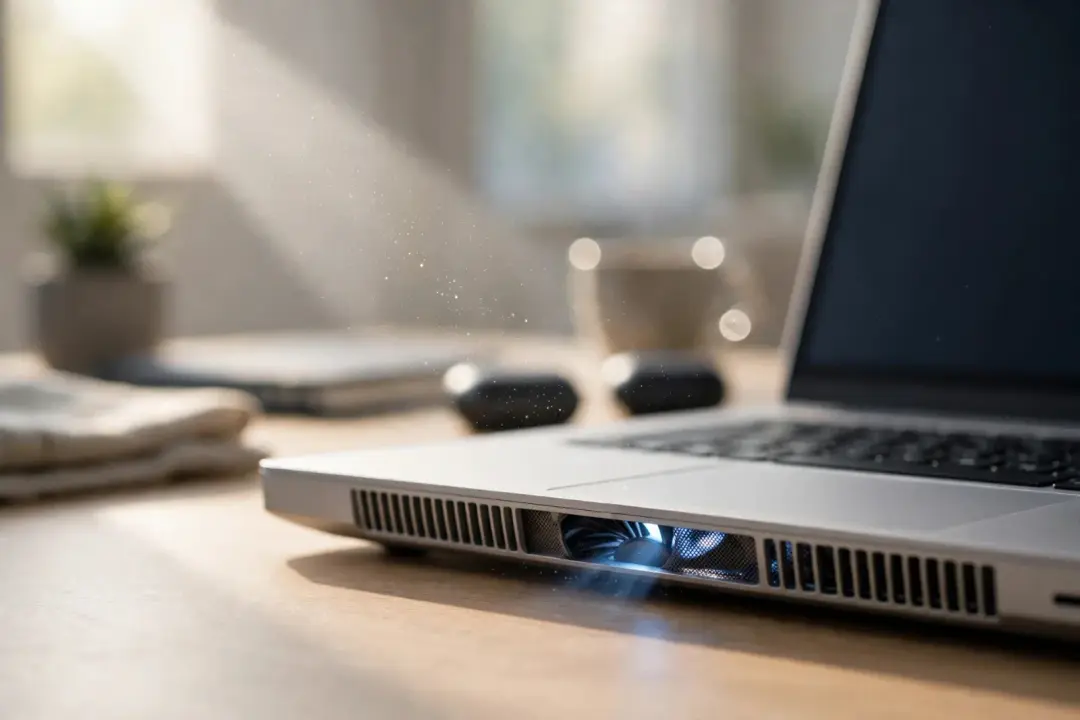
Why is my laptop fan so loud? If your laptop suddenly sounds like a hair dryer — or has been getting noisier for weeks — the fan is almost never the problem itself. It is the symptom. A laptop fan has one job: push hot air out of a very small box. When it gets loud, it is working harder than it should, and something is making it work that hard. The good news is that most causes are easy to find and free to fix. Here is how to work out which one is yours.
What the fan is actually doing
Inside your laptop, the processor (CPU) and the graphics chip (GPU) turn electricity into heat. The hotter they get, the faster the fan spins to pull that heat out. That is normal behaviour — a fan spinning up during gaming, video editing, or a big software update is the cooling system doing exactly what it was designed to do, and it should quiet down when the task finishes.
What counts as normal? Most laptops idle at around 40–60°C and reach 80–90°C under heavy load like gaming or a video export. A loud fan during heavy work is expected. A loud fan while you are doing nothing is not — and that is where the detective work starts.
The 8 most common causes — and the fix for each
1. A heavy workload. Gaming, video editing, 3D rendering, or a Windows update push the CPU and GPU hard, so the fan spins up. This is the system working correctly. If the noise stops when the task ends, there is nothing to fix.
2. A runaway background process. A stuck browser tab, a frozen app, a cloud sync, or a search-indexing pass can pin the CPU at high usage while you think the laptop is idle. Open Task Manager with Ctrl + Shift + Esc (Windows) or Activity Monitor (Mac), sort by CPU, and look for anything using 30% or 50% while you are doing almost nothing. End the process or restart the laptop.
3. Dust in the vents and heatsink. This is the number-one cause of a fan that gradually gets louder over months. Dust clogs the cooling fins so air cannot carry heat away, and the fan spins faster and louder to compensate. With the laptop off and unplugged, blow the vents out with short bursts of canned compressed air, holding the can upright. Hold the fan blade still through the vent (a toothpick works) so it does not over-spin.
4. Blocked vents. Using a laptop on a bed, a sofa cushion, or your lap blocks the intake vents on the bottom and traps heat inside the case. Always use a hard, flat surface like a desk or table, and keep a few inches of clearance around each vent so air can move.
5. The wrong power mode. On Windows, the "Best performance" power mode keeps the processor running fast — and the fan working harder. Switching to "Balanced" often makes a laptop noticeably quieter for everyday work, with no difference you can feel.
6. Malware or a crypto-miner. Hidden software can use your CPU to mine cryptocurrency in the background. If Task Manager shows high CPU usage from a program you do not recognise, run a full scan with Windows Security or a trusted tool like Malwarebytes.
7. Dried-out thermal paste. The paste between the chip and the heatsink transfers heat away — and on machines three or more years old, it hardens and stops working well. The fix is a repaste: a cheap part, but it means opening the laptop, so most people should leave it to a technician.
8. A failing fan. Fans wear out. A worn bearing is the one cause you cannot fix with software or cleaning, and the sound gives it away.
What the sound tells you
| Sound | Most likely cause | Urgency |
|---|---|---|
| Loud, steady whoosh | Fan spinning fast because the laptop is hot or busy | Low — find out why it is working hard |
| Whoosh that rises and falls | Background process, or dust blocking airflow | Medium |
| Rattling or buzzing | Loose fan, debris touching the blades, or a loose screw | Medium |
| Clicking or ticking | A cable or bit of debris hitting the blades | Medium — fix before the blades break |
| Grinding or scraping | Worn fan bearing | High — the fan will fail soon |
| No sound at all, laptop very hot | The fan has stopped | High — stop heavy use until it is fixed |
A grinding, rattling, or clicking sound is different from a whoosh: it points to a mechanical problem with the fan itself, not heat. And if the laptop is very hot but the fan is silent, the fan may have failed entirely — stop running heavy apps until it is repaired.
The 5-minute diagnosis
- Restart the laptop and leave it idle on the desktop for five minutes. If the fan stays loud with nothing open, the cause is probably physical (dust or a failing fan), not software.
- Check what is using the CPU. Open Task Manager (Ctrl + Shift + Esc), click the Processes tab, and sort by CPU. Anything eating a large share while you do nothing is your answer.
- Check the temperature. A free tool like HWiNFO or Core Temp shows your CPU temperature and fan speed. If temperatures are high and the fan is loud, airflow is the problem. If temperatures are high and the fan is quiet, the fan may have failed.
- Change the surface and the power mode. Move the laptop to a hard desk and switch to Balanced power mode, then listen again.
When to stop and get help
Most loud fans are fixed by the steps above. Get a technician involved if the fan grinds or rattles, if the laptop stays hot after cleaning, if the fan never spins at all, or if the laptop is three-plus years old and might need new thermal paste. Those are quick, inexpensive repairs — but running a hot laptop with a failing fan risks damage to far more expensive parts.
Takeaway checklist
- A loud fan means heat, not a broken laptop — find the heat source first.
- Check Task Manager first: a runaway app or browser tab is the most common surprise cause.
- Clean the vents with short bursts of compressed air, laptop off and unplugged.
- Use a hard, flat surface — beds and laps block the air intake.
- Switch to Balanced power mode for everyday work.
- Listen to the sound: a whoosh is heat, but grinding, rattling, or clicking means a worn fan — get it replaced.
Your fan is a temperature gauge, not a fault alarm. Work through the list in order, and most laptops go quiet again within minutes. For more on the heat side of the story, see Why Do Phones Get Hot When Charging?, and for what the processor inside is actually doing, read How Do CPUs Actually Work?.